
You can use individual articles in the edoc Docs Center with an AI tool of your choice, for example, to summarize content or ask specific questions about the content.
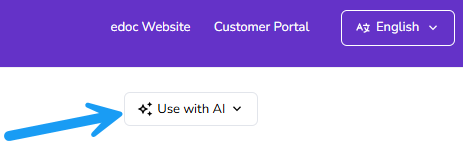
Once you've opened an article, the Use with AI option gives you several options:
-
Chat directly with the AI tool: Switch to ChatGPT or Claude to ask questions about the article. Once the AI tool is open, it will first analyze and summarize the article's content. After the analysis is complete, you can ask questions.
-
Copy or view article content as Markdown: Copy the article content as Markdown to the clipboard, or open the article content as a Markdown file in your browser. By copying the content, you can paste it into your AI tool and ask a question right away.
Things to know
The AI feature is page-based. You can only ask questions about the content of the article that is currently open.
If you have more general questions about an edoc app, you can use the URL https://docs.edoc.de/ and your preferred language (/de for German or /en for English) into your AI tool and ask your question with as much specific context as possible. The AI tool will scan all available content and generate a response.
Start a chat with an AI tool
You can start a chat with ChatGPT or Claude directly from the edoc Docs Center. The article content is automatically forwarded to the AI and analyzed in the chat. After the analysis, you will receive a summary and, if applicable, initial suggestions for questions.
Here's how
-
Open an article in the edoc Docs Center.
-
Click Use with AI.
-
Click either Open in ChatGPT or Open in Claude to automatically paste the article into your AI tool's chat window.
-
Ask a question about this article.
Copy or view an article as Markdown
AI tools are particularly good at processing content in Markdown format. You can copy the article content in Markdown format or view it in your browser. Using the Markdown option, you can paste the content into the AI application of your choice.
Here's how
-
Open an article in the edoc Docs Center.
-
Click Use with AI.
-
Select one of the following options:
-
Copy as Markdown to copy the article content to the clipboard and paste it into your AI tool's chat.
-
View as Markdown to display the content as a Markdown file in a new browser tab. Copy the URL to paste it into your AI tool's chat along with your question.
-