
In this article, you will find an overview of the layout and standard functions in the edoc Docs Center: basic controls and navigation elements on the portal page, on the start page of a guide and in the individual article view of an open guide.
This overview focuses on the essential elements in the edoc Docs Center and offers you an orientation guide.
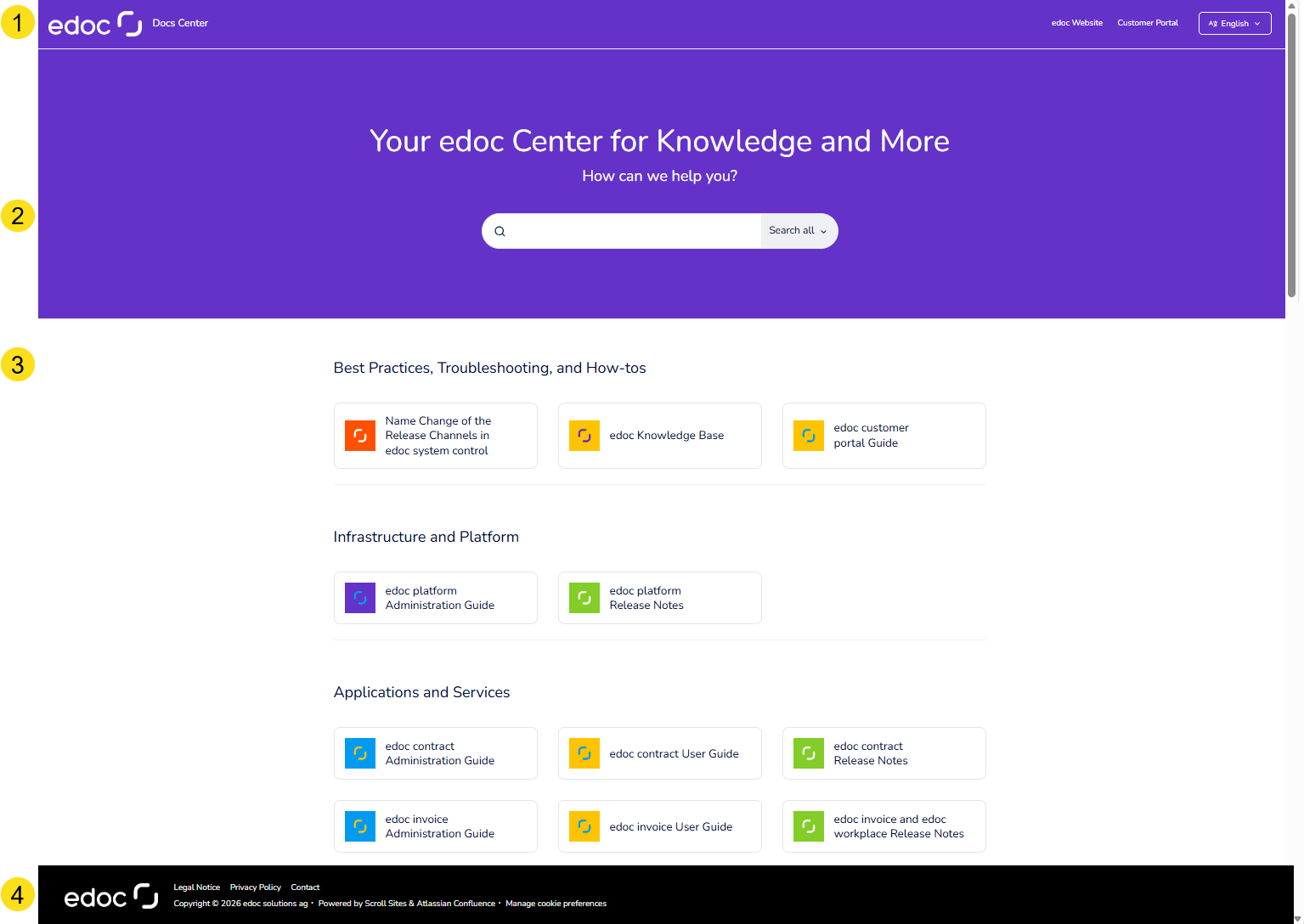
Overview of the elements on the edoc Docs Center portal page
These standard elements can be found on the portal page:
-
Title bar: The title bar always shows the current location where you are. The links to navigate to the edoc website or the customer portal are also displayed and you can select a language.
-
Global search field (search box): You can use the search to search through all content in the edoc Docs Center. The search is a keyword search. You can restrict the keyword search to a guide by clicking on Search all.
-
Overview of the contents: The content is structured in sections. If you click or tap on a tile, you will be taken directly to the start page (title page) of the content. A tile represents a book cover, so to speak. To open the book, click or tap on the book cover (tile in the edoc Docs Center).
-
Footer: In the footer you will find links to legal information, including the legal notice, privacy policy and copyright. The links are opened in separate browser tabs.
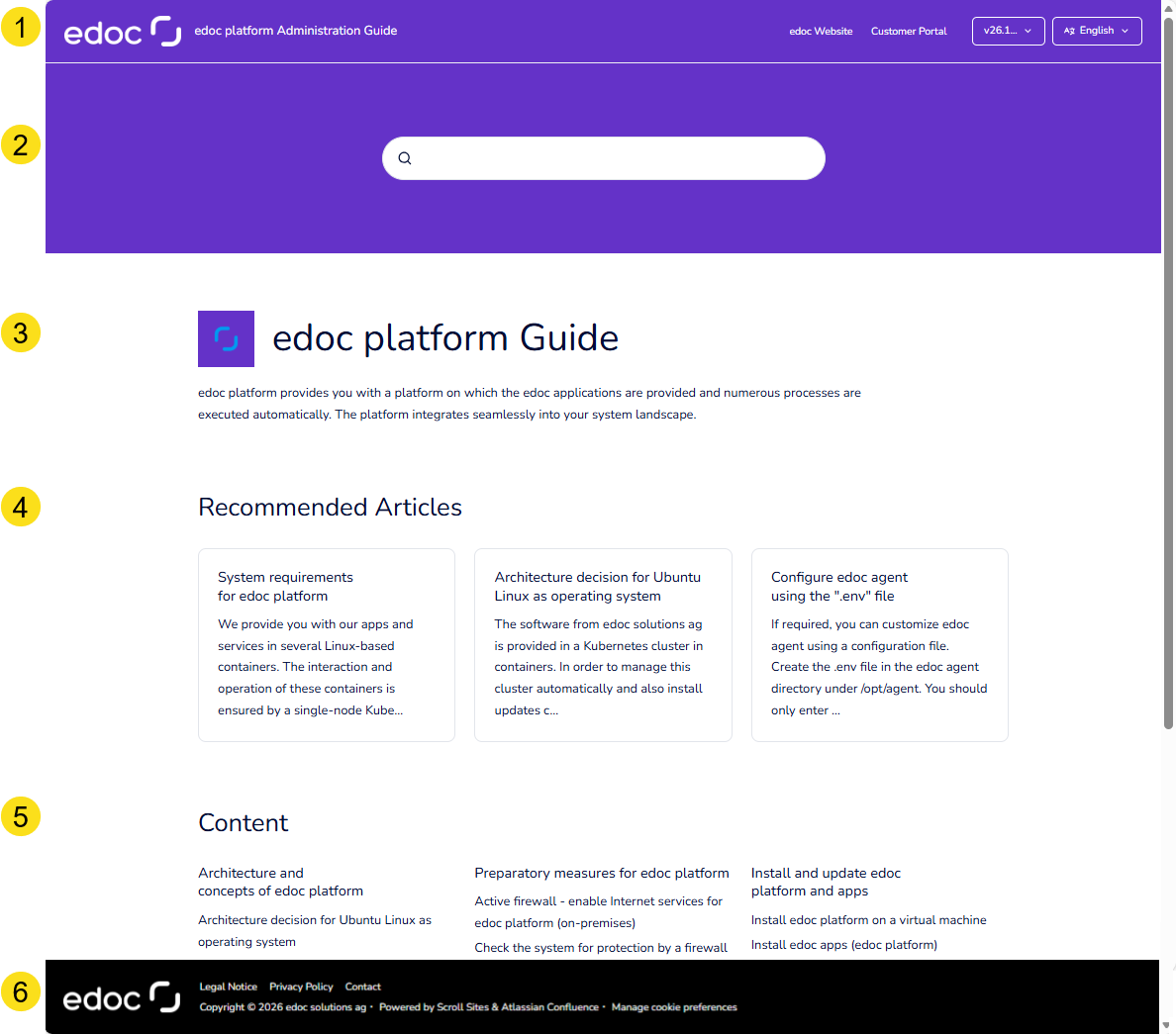
Overview of the elements on the start page of a guide
After you have clicked or tapped on a tile on the portal page, you will be taken to the start page of the selected content. The start page of a guide is like the title page of a book with some additional information and functions.
These standard elements can be found on the front page:
-
Title bar: The title bar always shows the current location where you are. Click on the edoc logo to return to the portal page. The links to navigate to the edoc website or the customer portal are also displayed. You can also select a version of the guide, if available, and change the language.
-
Search field (search box): Use the search to search through the entire contents of the guide. The search is a keyword search.
-
Name of the guide: Displays a brief description of the software next to the name.
-
Recommended articles: In this section you will find important content, including the system requirements. If you click or tap on a tile, you will be taken directly to the article in the guide.
-
Content: A condensed table of contents is displayed in the Content section. If you click or tap on a link, you will be taken directly to the article in the guide.
-
Footer: In the footer you will find links to legal information, including the legal notice, privacy policy and copyright. The links are opened in separate browser tabs.
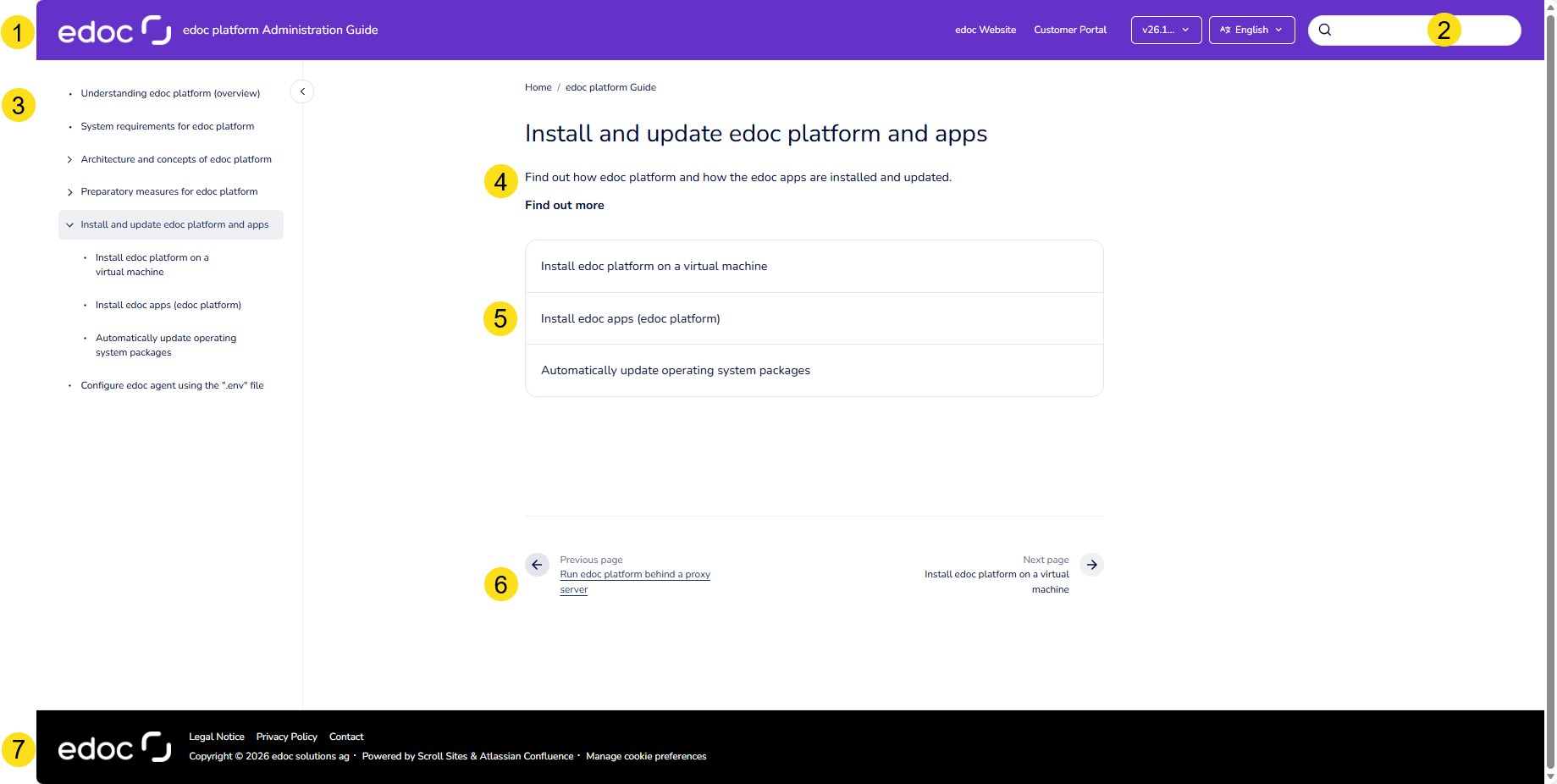
Overview of the elements in the guide
Once you have opened a guide, the table of contents of the guide and the selected article are displayed.
You will find these standard elements on the start page:
-
Title bar: The title bar always shows the title of the guide you are in. Click on the edoc logo to return to the portal page. The links to navigate to the edoc website or the customer portal are also displayed. You can also select a version of the guide, if available, and change the language.
-
Search field (search box): You can use the search to search the contents of the guide. The search is a keyword search.
-
Table of contents: Displays the table of contents in condensed form. Articles that have subpages are displayed with an arrowhead. By clicking or tapping on the arrowhead, you expand the table of contents and the subpages are displayed.
-
Page content: Displays the content of the article.
-
Links to the subordinate pages: The links to the pages are only displayed if there are subordinate pages.
-
Action buttons for navigation: You can use the action buttons to navigate to the previous page or the next page.
-
Footer: In the footer you will find links to legal information, including the legal notice, privacy policy and copyright. The links are opened in separate browser tabs.
See also