
You can add components to a view at any point. By default, there are different categories of components that you can use: textedit, action, text, document, layout, list, choose, app.
Things to know
-
You open the component overview by pointing to the bar in the editor and then clicking on Add.
-
The component overview is divided into categories, can be searched and has a Favorites section.
-
All components are arranged on top of each other in the view. You can use layout or list components (e.g. Columns, Table) to arrange the view more clearly and insert additional components.
-
The names of the inserted components are generated automatically. You can change the name under Properties > Name. Only lower case letters, numbers, underscores and square brackets are permitted.
-
The value (Value) is generated automatically for some components. You can change the name under Properties > Value.
Here's how
-
Point to the bar in the editor with the mouse and click on Add.
-
Select the component to open it in the editor. As soon as you select the component in the editor, the detail area with Properties or Events is displayed.
-
If required, enter a name under Properties > Name to change the generated name.
-
If required, enter a name under Properties > Value, e.g. to have a unique default value.
-
If required, add a new action with New Action under Events.
-
Save your work with Save.
If you want to add another component to the existing component, you can use the context functions of the current component:
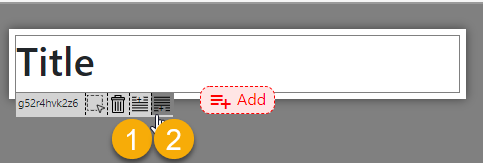
Meaning of the symbols for adding
-
By clicking on the symbol with the plus sign at the top, the new component is inserted above the current component.
-
By clicking on the symbol with the plus sign at the bottom, the new component is inserted below the current component.