
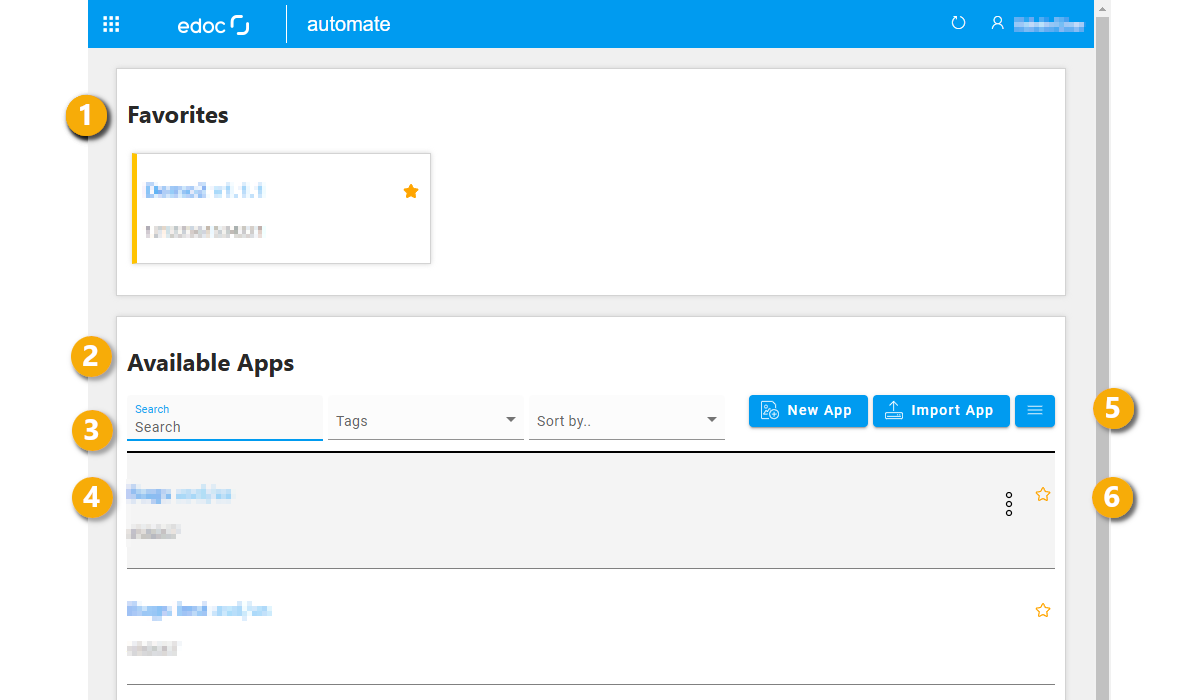
The edoc automate start page is a dashboard where you can, for example, find all available apps, search for apps and mark apps as favorites. The dashboard is also your starting point for creating a new app or importing an app.
Open edoc automate in your browser with the corresponding URL from the server (https://<domain>/automate).
Overview of the functions in the dashboard
The following functions are available to you:
-
"Favorites" (Favorites): This section lists all apps that you have marked as favorites. To create a favorite, click on the star next to the app in the list of available apps.
-
"Available Apps" (available apps): In this section you will find all apps that have been created in edoc automate. By clicking on an app, you can edit the app in another browser tab in the editor.
-
"Search", "Tags", and "Sort by": If you have an extensive list of apps, the functions for searching, filtering and sorting make it easier to find them.
-
With Search, you can search for the name of an app, its description, and other content.
-
Tags allows you to filter the app list according to the tags that you use in individual apps. Click on Tags to display a list of existing tags.
-
Sort by allows you to sort the list of apps by name or version number.
-
-
Short description of an app: Each app is displayed with the title, version, a short description and the associated tags. Each app has an action menu (three dots). You can delete the app (Delete), or export it (Export).
-
"New App", "Import App" and burger menu: Use the New App function to create a new app with the first basic information about the app. With Import App, you can import an app from another server or from a backup of edoc automate.
You can use the burger menu to access some additional tools:-
Files: Use this function to switch to the web view of WebDAV.
-
Administration: Use this function to switch to the administration area of edoc automate.
-
Keycloak: Use this function to switch to Keycloak management.
-
phpMyAdmin: Use this function to switch to phpMyAdmin to manage the MySQL instances.
-
-
"Star" and app-specific menu: You can use the star to mark an app as a favorite. In the app-specific menu, you can perform the following actions with an app:
-
Delete: Deletes the selected app.
-
Export: Opens the export dialog to export the selected app.
-
Duplicate: Opens the dialog for duplicating an app.
-
Overview of the "New App" dialog
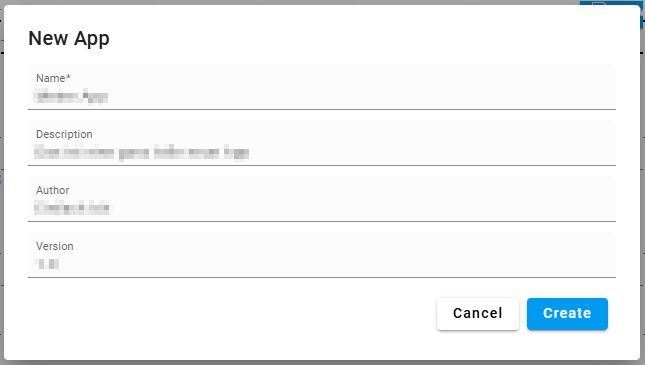
Click on New App to open the dialog for creating an app. In the first step, enter the basic properties of the app under Properties and then click on Create.
The following functions are available in the dialog:
-
Name: Enter a name for the app. The name is used to uniquely identify the app in the list. When the app is created, a unique ID is also generated from the name for the app.
-
Description: Enter a description for the app. The description is used to briefly explain to other people what the app can be used for.
-
Author: Enter your name if you are the person who created the app.
-
Version: Enter a name for your first version of the app. The following characters are allowed: Numbers, dots, minus sign (hyphen). You can enter a maximum of 10 characters.
After creating the app, the new app is listed in the list of available apps. By clicking on the app, you can edit the app in the editor, which opens in a separate tab in the browser. You can therefore also edit several apps simultaneously in the browser in different tabs.
See also