
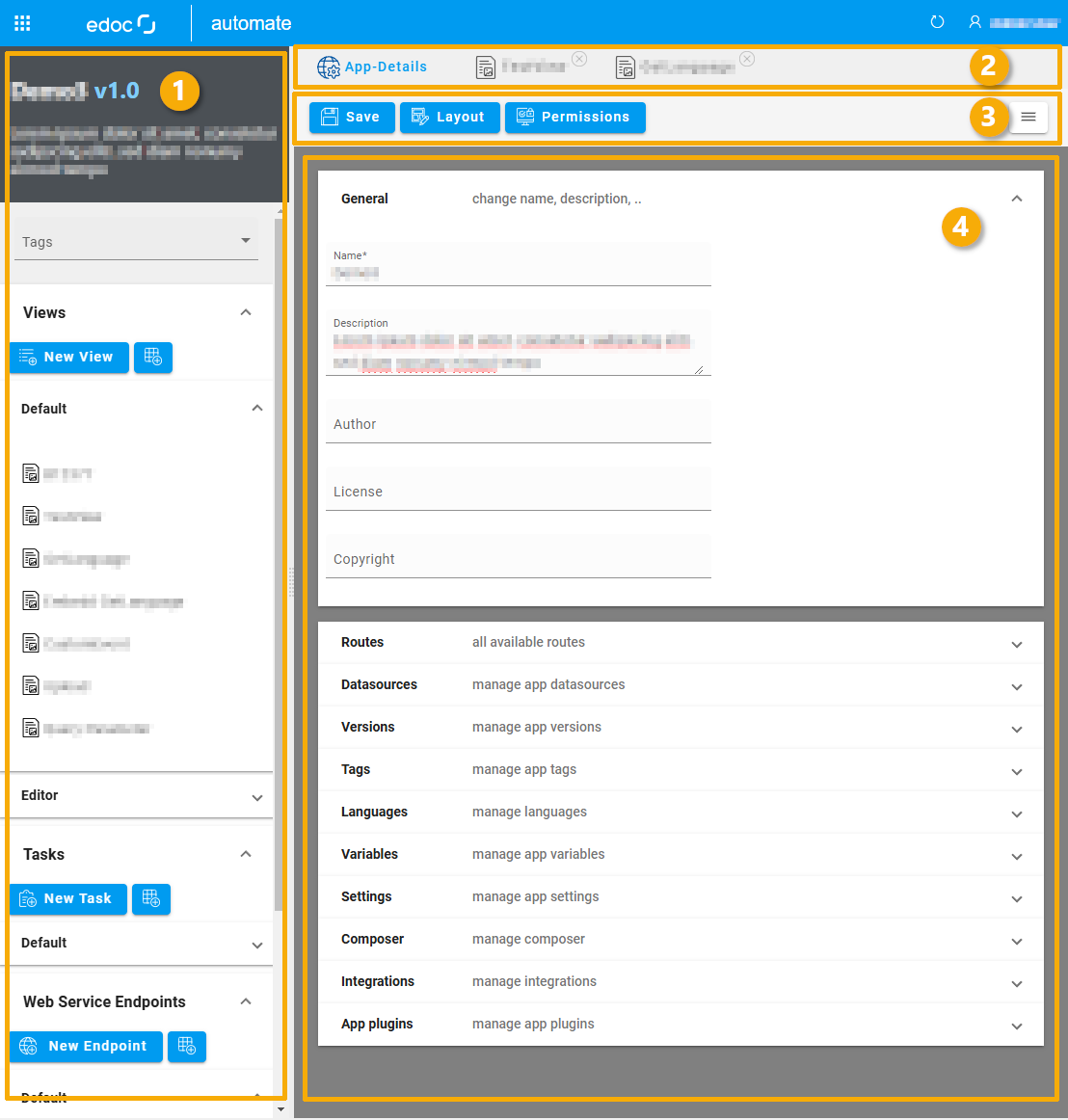
The editing editor for your app projects in edoc automate is divided into four sections:
-
Sidebar with the project view, in which all the content used in the app is listed.
-
Navigation bar with all active elements of an app.
-
Dynamic bar with various functions per element (view, task, etc.) and the burger menu for accessing files (in WebDAV), the administration and Keycloak under App-Details and other functions as soon as you are active in another element.
-
Workspace for the currently selected element. You will see different content depending on the element.
Understanding grouping the elements
All elements (views, tasks, web service endpoints, and flows) of an app are automatically created in the Default group. The groups are only used for structuring in the editor and have no effect on the execution of the app.
If necessary, you can move the elements to another group using drag and drop.
Here's how
-
Create a new group, e.g. by clicking on the Add button next to the New View button.
-
Enter a name for the new group in the add dialog and click on Add.
-
Open the newly created group by clicking on it.
-
Select an element in the Default group, for example, and move the element to the new group using drag and drop.