
You can reuse previously created views in any number of views by embedding the corresponding view of the app as a component. You can create new actions in the embedded views or use actions to access the components of the embedded views.
Working with views that you can embed as components in any views and customize for the corresponding views increases the quality and performance when developing the app.
In this article, you will learn about the principle and the first steps in creating actions in embedded views.
Initial situation
-
You have already created at least one view with actions that you have already embedded in another view.
-
You are in the view in which you have embedded the other view.
Step 1: Create new actions for embedded view
Before you create a new action, you must first activate the mode for selecting the components on the embedded views:
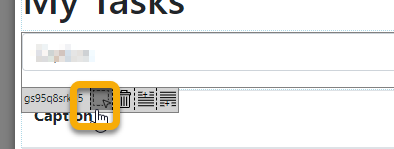
As soon as you have activated the mode, you can select the components of the embedded views individually. The existing actions of the view are automatically displayed in the detail area.
Suppose you have already embedded a view and the embedded view has an Add button. The view with the Addbutton already has the actions insert (Query) and clear (SetValue).
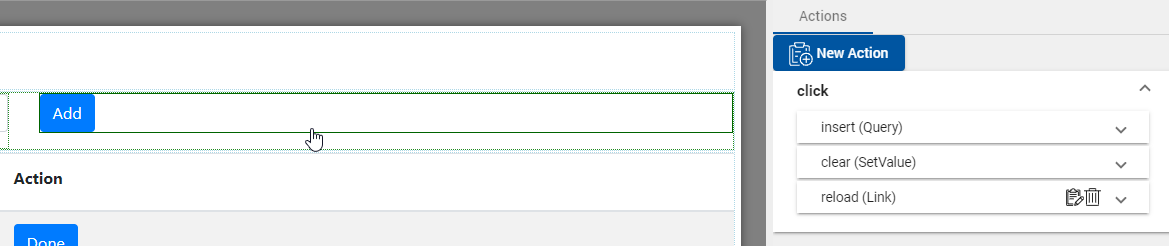
You can use New Action to add any actions to optimize the view for the specific context, e.g. the reload (Link) action. The newly added action is only available in the current view in which the embedded component is reused. You can recognize all newly added actions by the fact that the icons for editing and deleting are displayed.
Step 2: Linking components in actions
You can reuse all actions of an integrated view, e.g. with the default\Link action, to execute the linked actions for certain events.
Here's how
-
You create a new action for any event for a standalone component. Make absolutely sure that the component is not in the integrated view.
-
Select the corresponding event in the Edit Action dialog under Event.
-
Under Type in the Default section, select the Link entry.
-
In the Parameters section under Source , select a component by clicking on the icon with the image.
-
Activate the mode for selecting the components in the embedded view that you want to link.
-
Select the component in the integrated view on which the action to be linked was created.
-
In the Edit Action dialog, select the corresponding action in the Parameters section under Action. The selected action must have a name.
-
Click Apply to create the action.
To save the changes in the app permanently, please also save the app.